Black out a bank statement and keep the amounts readable
Ask the person who wants it what they need to see. Then open the statement in PDF Stitch, search for the account number and for each payee to hide, and black them out with redactions, which take the words out of the file. A black box drawn in a viewer or editor often leaves the words in the file, where anyone can copy them.
See it: one statement, before and after
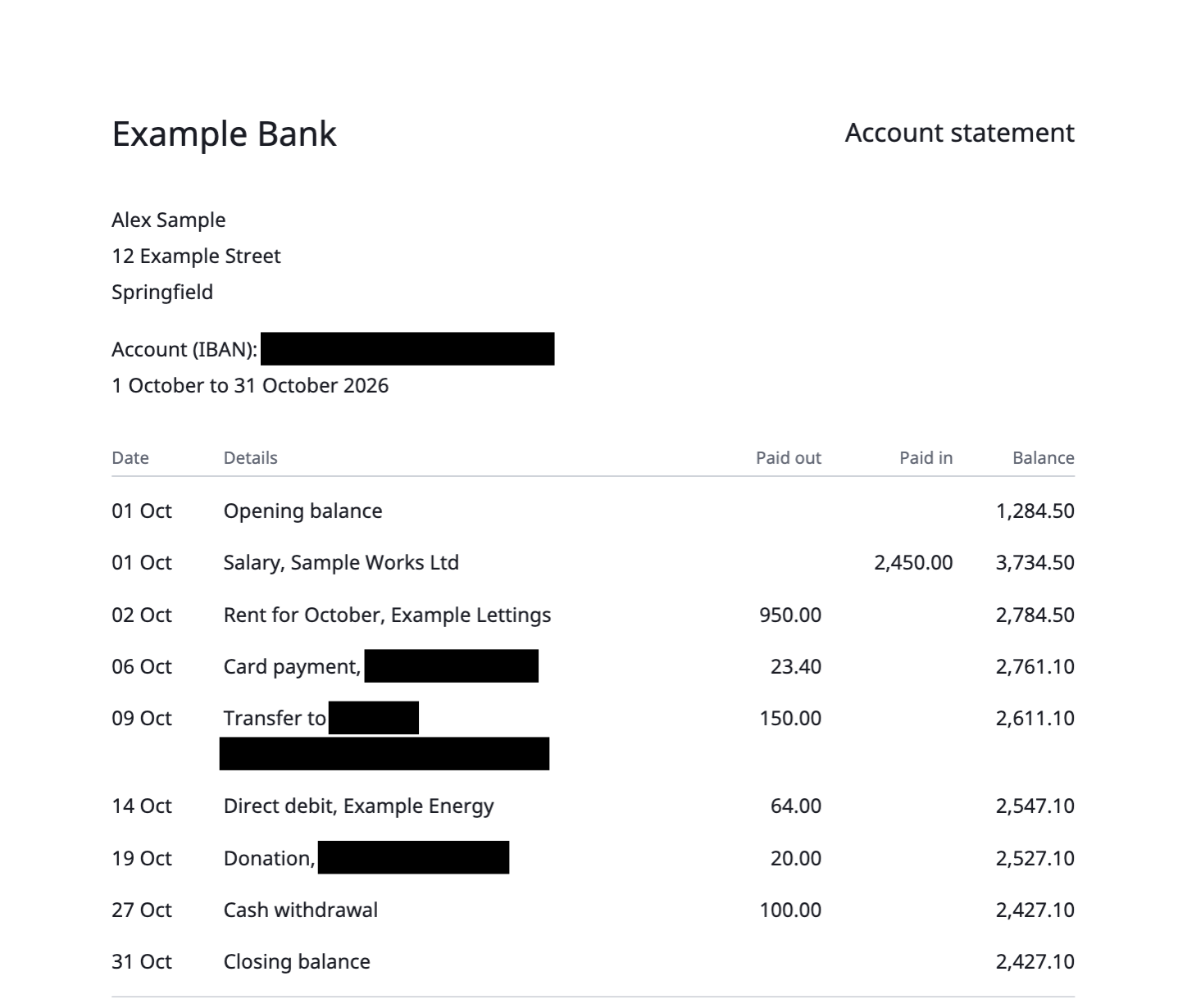
Both files are the same one-page statement. The first is as a bank would send it. The second was put through the steps on this page: the account numbers were found by their shape, and the pharmacy, the person paid and the church were typed in. Under each page is the text the file holds, read out of it.
As the bank sent it
A made-up statement from a made-up bank. Both account numbers, the person paid, the pharmacy and the church are all on the page and in the file, as text anyone can copy.
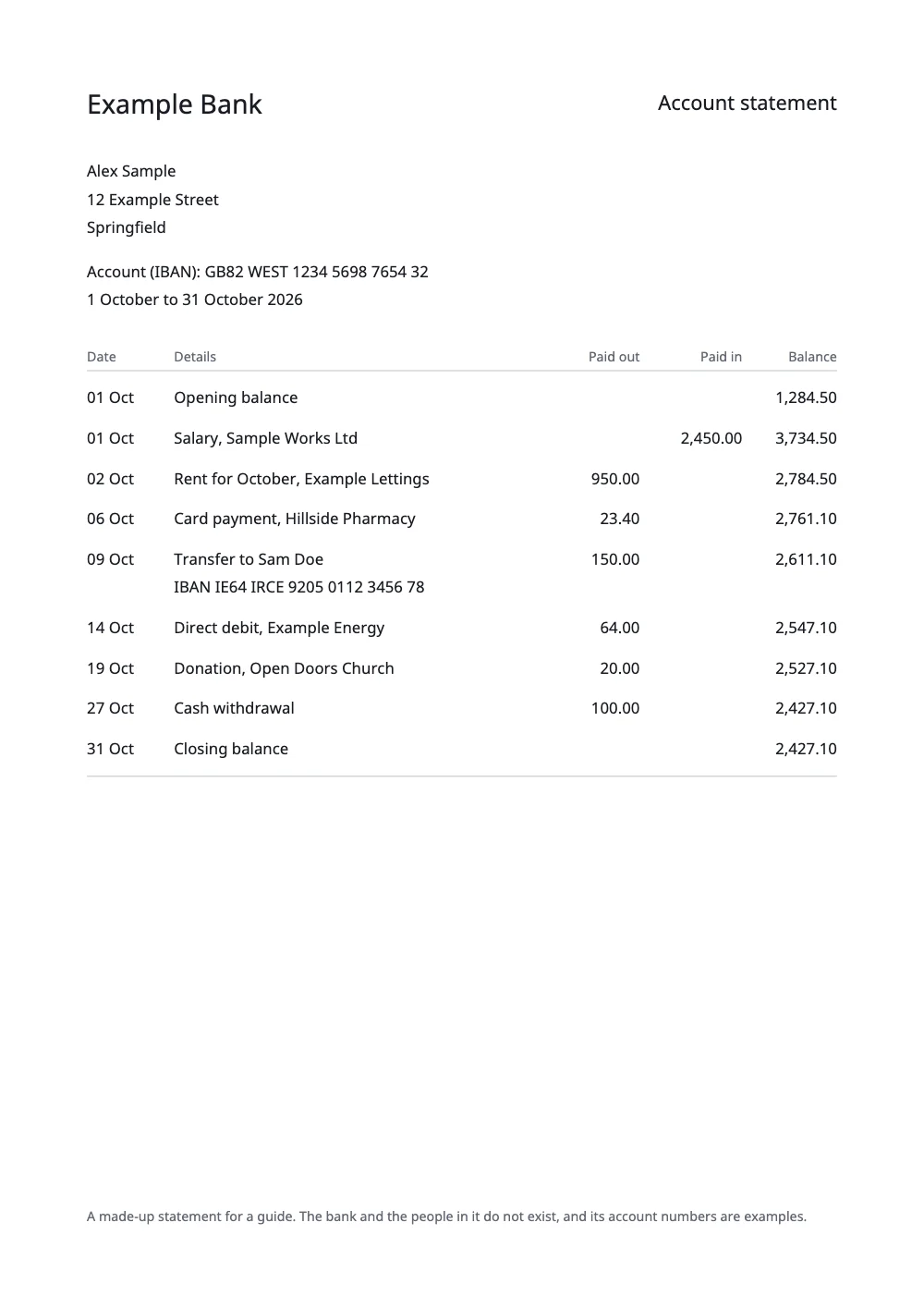
Try it: drag across the words on the page, or select all its text, then copy it. What you can copy is what the file holds.
The text in "As the bank sent it"
Example Bank Account statement
Alex Sample
12 Example Street
Springfield
Account (IBAN): GB82 WEST 1234 5698 7654 32
1 October to 31 October 2026
Date Details Paid out Paid in Balance
01 Oct Opening balance 1,284.50
01 Oct Salary, Sample Works Ltd 2,450.00 3,734.50
02 Oct Rent for October, Example Lettings 950.00 2,784.50
06 Oct Card payment, Hillside Pharmacy 23.40 2,761.10
09 Oct Transfer to Sam Doe 150.00 2,611.10
IBAN IE64 IRCE 9205 0112 3456 78
14 Oct Direct debit, Example Energy 64.00 2,547.10
19 Oct Donation, Open Doors Church 20.00 2,527.10
27 Oct Cash withdrawal 100.00 2,427.10
31 Oct Closing balance 2,427.10
A made-up statement for a guide. The bank and the people in it do not exist, and its account numbers are examples.
Blacked out with PDF Stitch
The same statement after Find and black out in PDF Stitch. Both account numbers and the three payees are gone from the file, not only covered. The name, the dates, the amounts and the balances are still there.
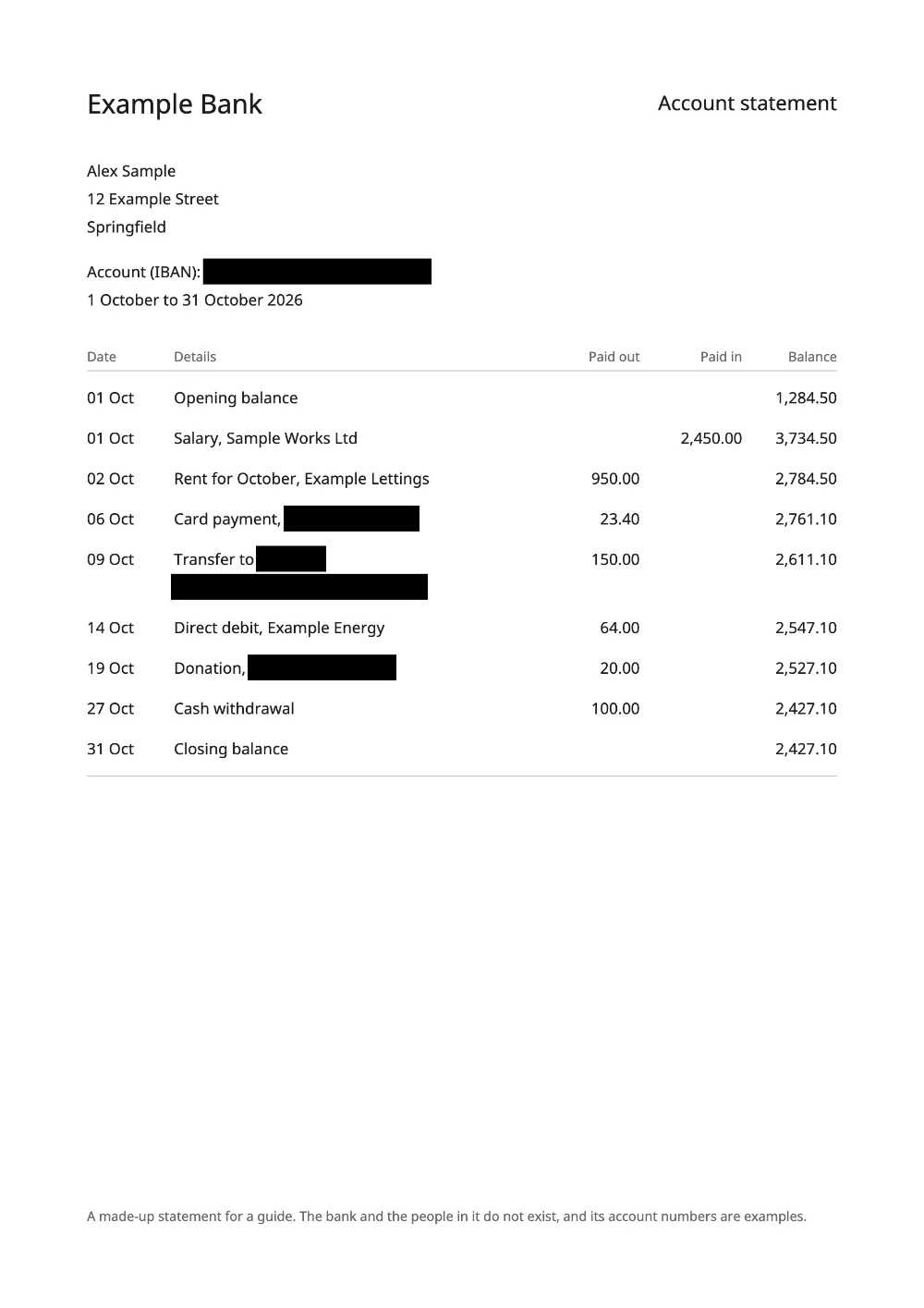
Try it: drag across the words on the page, or select all its text, then copy it. What you can copy is what the file holds.
The text in "Blacked out with PDF Stitch"
Example Bank Account statement
Alex Sample
12 Example Street
Springfield
Account (IBAN):
1 October to 31 October 2026
Date Details Paid out Paid in Balance
01 Oct Opening balance 1,284.50
01 Oct Salary, Sample Works Ltd 2,450.00 3,734.50
02 Oct Rent for October, Example Lettings 950.00 2,784.50
06 Oct Card payment, 23.40 2,761.10
09 Oct Transfer to 150.00 2,611.10
14 Oct Direct debit, Example Energy 64.00 2,547.10
19 Oct Donation, 20.00 2,527.10
27 Oct Cash withdrawal 100.00 2,427.10
31 Oct Closing balance 2,427.10
A made-up statement for a guide. The bank and the people in it do not exist, and its account numbers are examples.
Blacking out everything found at once is Pro, and so is keeping the rest of a redacted page's text, as this copy does, so its amounts can still be searched and copied (Keep redacted pages searchable). Without Pro, draw each box by hand with the Redact tool: the page is then a picture with no text at all, which is just as safe, and every figure still shows on it.
- Select the account number at the top of the first statement and copy it: it comes out. On the second there is nothing to select under the box.
- Select a row of the second statement: its date and amount come out, and the payee does not.
- Open the first statement in PDF Stitch, open Tools, choose Find and black out… Then choose Bank account numbers (IBAN) and press Find: both account numbers are found.
What to black out, and what to leave
A statement is sent to prove something: that your income arrives, that you pay your rent, that you have the money you say. Ask whoever wants it what that is, and for which months, and leave it readable. Black out the rest of what is private, and nothing more: a statement with too much blacked out may not be accepted.
- Usually leave: your name, the bank, the dates, every amount, the balances, and the payments the reader asked about, such as your salary or your rent.
- Usually black out: the account number, or all of it but the last few digits, unless the reader needs it to check the account is yours; other people's names and account numbers, as they did not choose to be in your paperwork; and who you paid where it says something about you, such as a doctor or pharmacy, a church, a party or a union.
- Think about the balance. If you black out an amount, the balances before and after it still give it away: the difference is the payment. Black out who was paid, and leave the amount.
- Every page. The account number can be printed on each page, and a payee can appear more than once. A search finds each place; an eye can miss one.
What a reader may ask for, and what you may hide from them, depends on who they are and on the country. Two examples, each for its own country only:
- Germany, benefits from a job centre. The Federal Social Court ruled in 2008 that someone claiming basic income support may black out who a payment went to, or what it was for, where it would reveal something such as their politics, religion or union membership, but not how much it was. The data protection authority of Lower Saxony says much the same for the job centres it oversees: who such a payment went to may be blacked out, payments into the account must not be blacked out at all, other payments out must stay fully traceable, and the job centre must say that blacking out is allowed.
- France, renting a home. A landlord renting out a private home may ask a would-be tenant only for the documents on a list the law sets, and a bank statement is not on it.
How to black out a statement in PDF Stitch
PDF Stitch runs in your browser, and the statement is not uploaded. If you can select the words on your statement, they are text, and Find and black out can find every place a name or number appears, on every page:
- Open your statement in PDF Stitch, open Tools and choose Find and black out…
- Under Words or phrases, type each payee and name to hide, as the statement writes it, pressing Enter after each one. Under Also find, choose Bank account numbers (IBAN). If pages are selected, choose Every page under Pages. Press Find.
- Check the list of matches, and untick any you want to keep. Then press Black out chosen to black them all out at once (Pro). Without Pro, close it, double-click the page to open it large, choose the Redact tool (X) and draw a box over each match, then press Back to all pages.
- Press Download. Each page with a redaction is checked for leftover text before the file is saved.
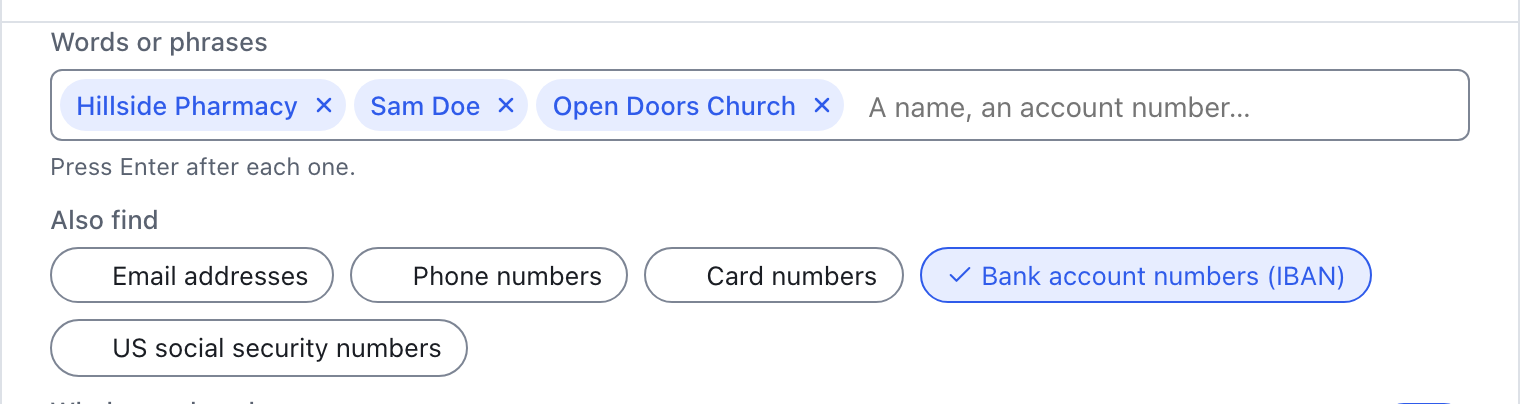
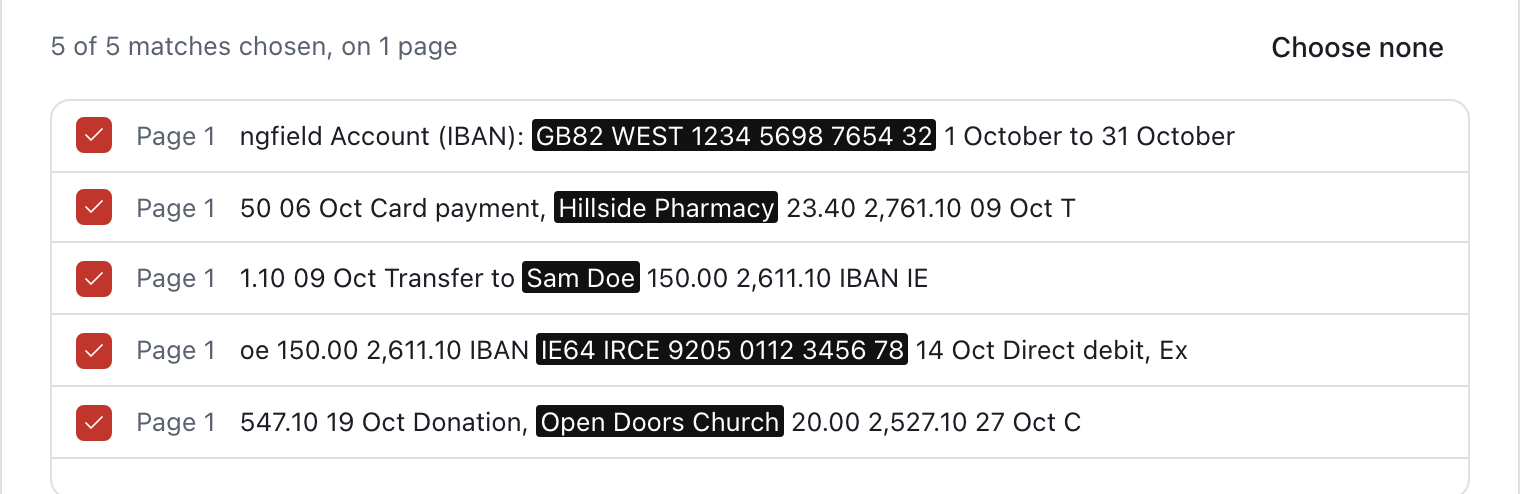
Find and black out in PDF Stitch
- Bank account numbers (IBAN) finds numbers written as an IBAN, with or without their spaces. An account number written another way, such as a sort code and account number, is not one: type it under Words or phrases. To leave the last digits of your own number showing, so the reader can tell which account it is, do not choose Bank account numbers (IBAN). Type your number under Words or phrases up to the last space before the digits to keep, as the statement spaces it: a match covers each whole group of digits it touches, and where the app cannot tell a line's words apart, the whole line. Check the page before downloading that the last digits still show; if they do not, remove that box and draw one by hand with Redact over just what to hide. Then type every other account number on the statement in full, as Bank account numbers (IBAN) would no longer find them.
- Phone numbers is best left unchosen on a statement. It takes any seven to fifteen digits in a row, written together or with spaces, dots, dashes or brackets, so dates such as 09.10.2026, many reference numbers and even amounts that run into the next line are found too. If you choose it, untick those matches.
- Whole words only is on from the start, so a short name is not found inside a longer word. Type a name as the statement writes it: a bank may shorten it or write it in capitals, and Match case is off from the start, so capitals do not matter.
A paper statement or a passbook. A scan or a photo of one holds no text to search until its text is recognised, and Find and black out names each page it could not search. Draw the boxes by hand: double-click the page to open it large, choose the Redact tool (X), draw a box over each thing to hide, press Back to all pages, then Download.
Before you send it
- Open the file you downloaded, search it for the account number and a payee you blacked out, then select all, copy and paste it into a plain text program. Nothing that was under a box should come out.
- Look at the file's name. The download is named after the file you opened, and so is its title, unless you give it one. If that name holds your account number, change it with Rename stitch in More ways to export (the arrow next to Download) before downloading. Find and black out lists the account number if it finds it in the title, with Document properties beside it to put it right.
- Remove hidden information, in Find and black out, leaves out the metadata, attached files and other information nobody sees on the pages (Pro). With Pro it is on from the start.
The guide on checking a redacted PDF walks through more checks:
Remove hidden data in PDF Stitch
Send the blacked-out copy, and keep the statement as the bank sent it. If the reader needs to see something you blacked out, you can make a new copy from it.
You do not have to take our word for it
-
Watch the network
The "Nothing is uploaded" button in the app opens a list of every other site the page has contacted since you opened it, and how often, taken from the browser's own record. Your browser's developer tools show every request, this site's own included.
-
Pull the plug
Once the app has loaded, turn off your network and keep working. Text recognition, the document converter and the handwriting fonts work offline too after their first use.
-
Redaction that removes
A page with something blacked out is saved as a picture of itself, so the text under the box is gone, and every redacted page is checked before the file is saved.
Questions
- Is blacking out a statement in PDF Stitch free?
- Yes, by hand: the Redact tool and the check before saving are free, and so is the search in Find and black out. Pro adds blacking out everything found at once, keeping the rest of a redacted page's text searchable, and leaving out hidden information. Free redaction is just as safe: the page is saved as a picture with no text at all.
- Is my statement uploaded?
- No. PDF Stitch runs in your browser, and the file is not uploaded.
- Will the amounts still be readable after redaction?
- Yes. Only what is under a box is removed, and the rest of the page is kept as a picture of itself, amounts and dates included. With Pro, that text can also still be searched and copied, as in the sample on this page.
- Will the reader accept a statement with parts blacked out?
- That is up to them, and in some places up to the law. Ask what they need before you send it, and leave that readable. In Germany, for example, someone claiming basic income support from a job centre may black out a payee that would reveal their religion, politics or union membership, but not the amount paid.
- Can I black out a photo or scan of a paper statement?
- Yes, with the Redact tool, drawn by hand: it works on any page. To search a scan, recognise its text first with Recognise text in scans, which is free up to 10 pages at a time and Pro over 10 pages, and fetches its language data the first time you use a language. Recognised text can hold mistakes, so check the page by eye too.
- Is a black box from a drawing or highlighting tool enough?
- No. A box drawn over text, in any program, often leaves the words in the file, where they can be selected and copied. Use a tool that removes them, then search and copy the downloaded file to check.
Sources
- Federal Social Court of Germany, judgment of 19 September 2008, B 14 AS 45/07 R (full text, in German)
- The data protection authority of Lower Saxony: FAQ on data protection in basic income support (July 2026, in German)
- Service Public (service-public.gouv.fr): Future tenant of a private home, the documents to give the landlord (in French)