Scan paper with your phone into one PDF
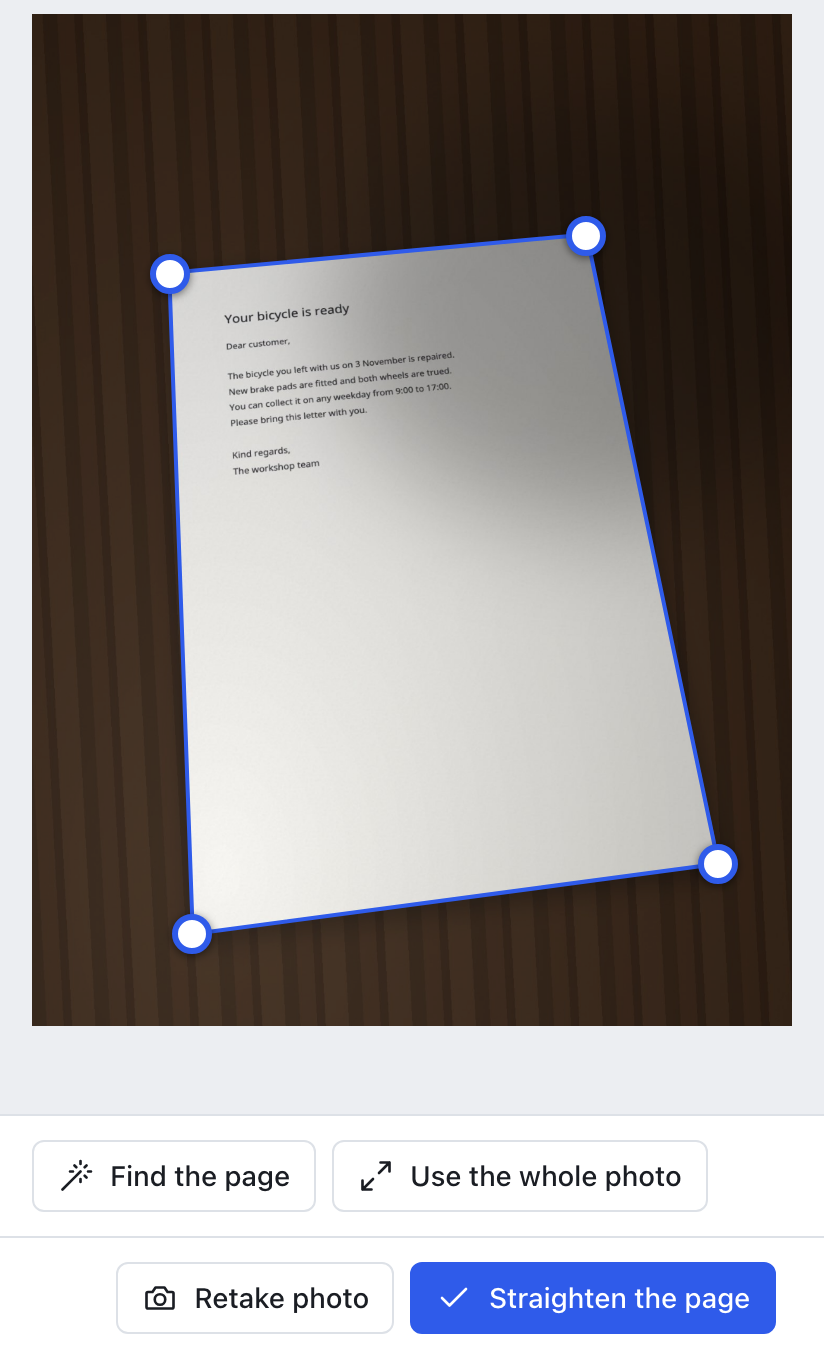
Open PDF Stitch in your phone's browser and press Scan pages: the camera opens. Photograph the page lying on something darker than it, check that the four corners sit on the corners of the page, and press Straighten the page. Press Add another page for each further page, then Open as a new stitch and Download.
See it for yourself: two phone pictures, and the same two scanned
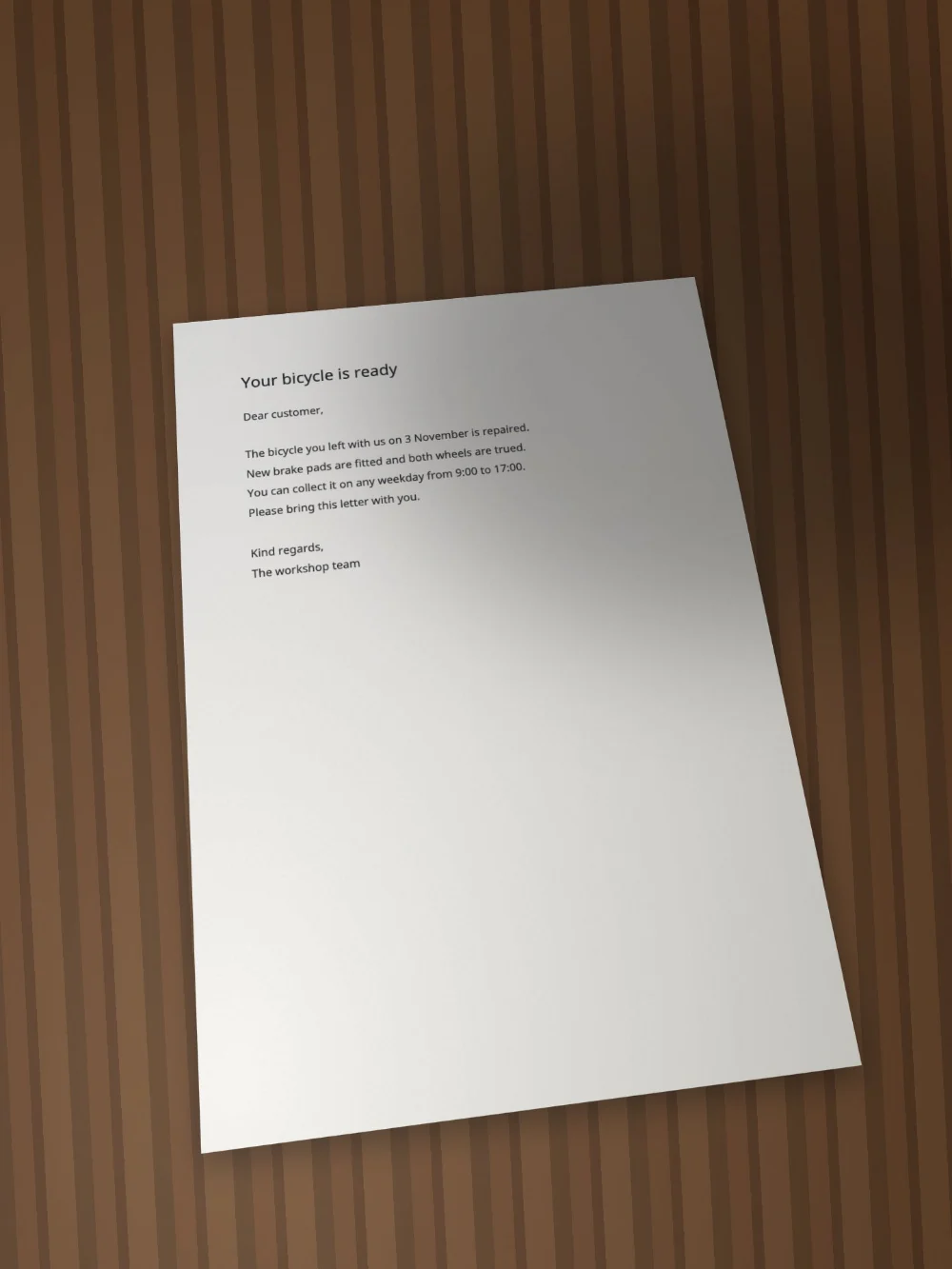
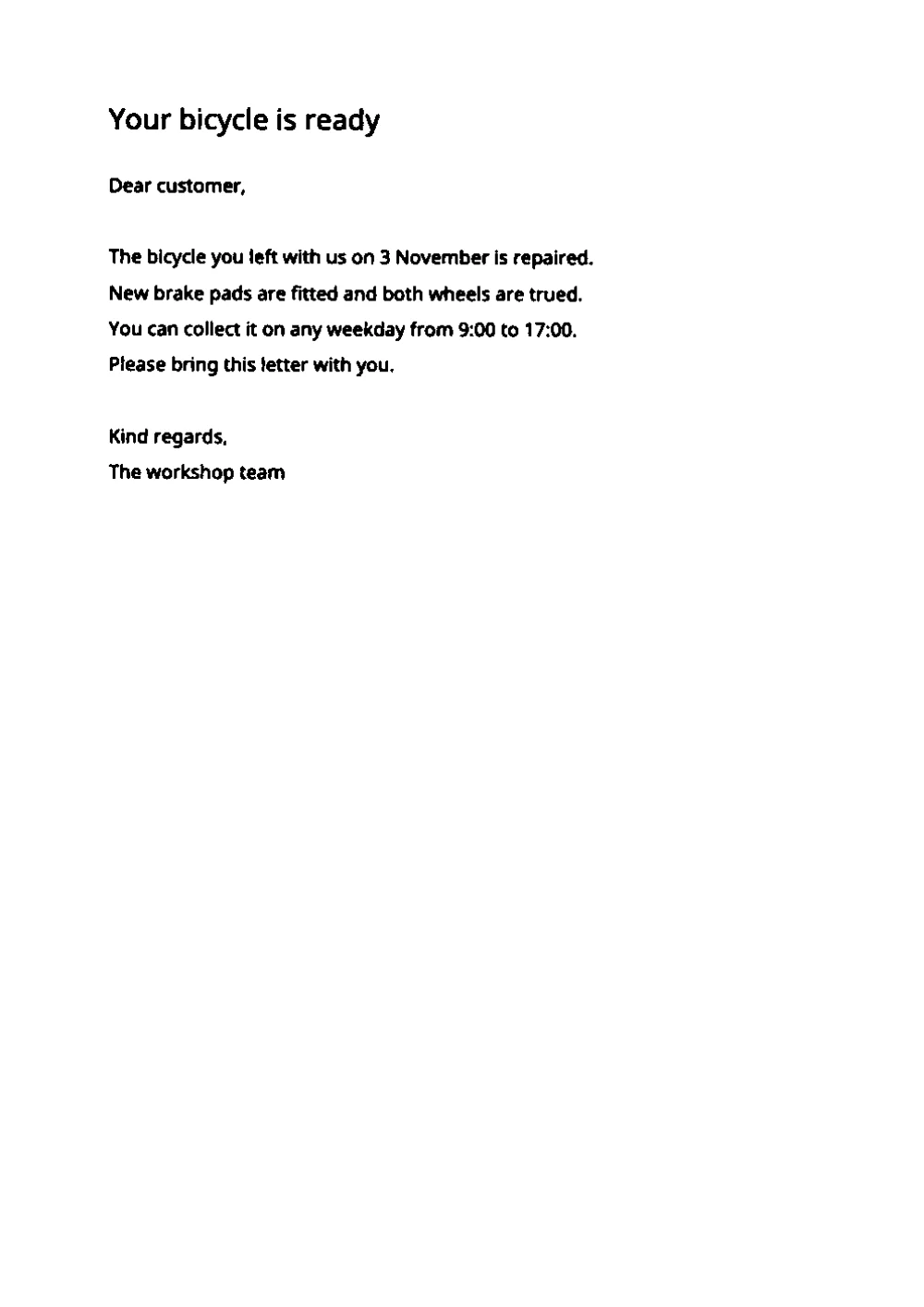
Both files are made from the same two pictures, drawn as a phone's photos: a short letter and a till receipt, lying at a slant, on a desk and on a table, with a shadow across the letter. The first puts the photos into a PDF as they are. The second is what PDF Stitch makes of them. Under each is the text the file holds, read out of it.
The photos, as they are
Two pictures of a made-up letter and receipt, drawn as a phone would photograph them lying at a slant, on a desk and on a table, put into a PDF as they are, with what they lie on and the shadow. The file holds no text: the words are part of the picture.
Try it: drag across the words on the page, or select all its text, then copy it. What you can copy is what the file holds.
The text in "The photos, as they are"
This file holds no text at all.
Scanned with PDF Stitch
The same two pictures through Scan pages: each page found, made flat and put on its paper, the letter on A4 in Black and white (Pro) and the receipt in Colour, its own shape kept. It holds no text either: a scan is a picture of the page until its text is recognised.
Try it: drag across the words on the page, or select all its text, then copy it. What you can copy is what the file holds.
The text in "Scanned with PDF Stitch"
This file holds no text at all.
- Look at the corners: in the first file the page is a slanted shape on a desk; in the second it is a flat page, with the desk gone.
- Look at the shadow across the letter. It is in the first file; in the second, the letter in black and white has none.
- Try to select a word in either file. There is none to select: both are pictures. That is true of any scan until its text is recognised.
How to scan with your phone
PDF Stitch runs in your phone's browser, so there is nothing to install. The photos are not uploaded: the page is found and straightened on the phone itself.
- Open PDF Stitch in your phone's browser and press Scan pages. The camera opens: photograph the first page.
- Check that the four corners sit on the corners of the page, and drag any that do not. While you drag, a magnifier above your finger shows what is under it. Find the page puts the corners back where the page was found, and Use the whole photo keeps all of the photo. For Black and white, put each corner just inside the paper: any desk left along an edge comes out as a black line.
- Press Straighten the page. The page is made flat, as if it had been scanned, and put on A4, Letter or Legal when it is that shape.
- Choose how the page looks: Colour, Greyscale (Pro) or Black and white (Pro). If it is sideways, turn it with the arrows beside Adjust the corners: Rotate left or Rotate right.
- Press Add another page for the next page, and do the same for each.
- Press Open as a new stitch, then Download.
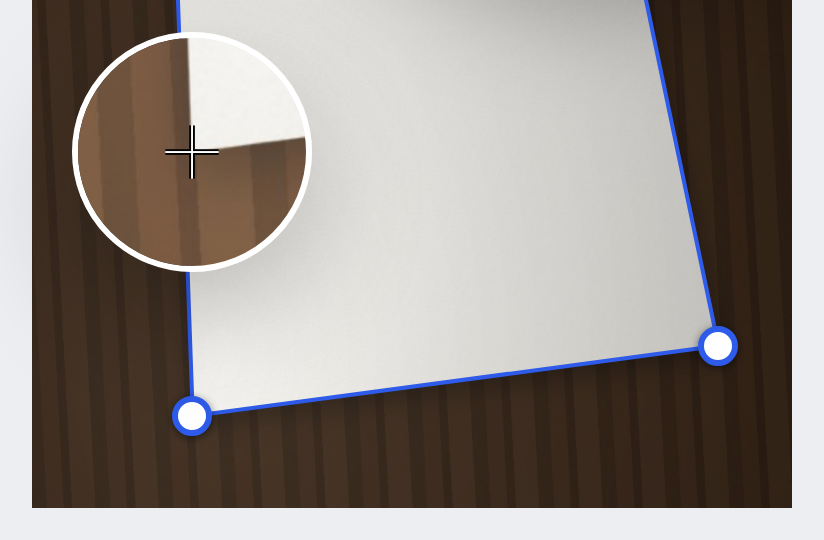
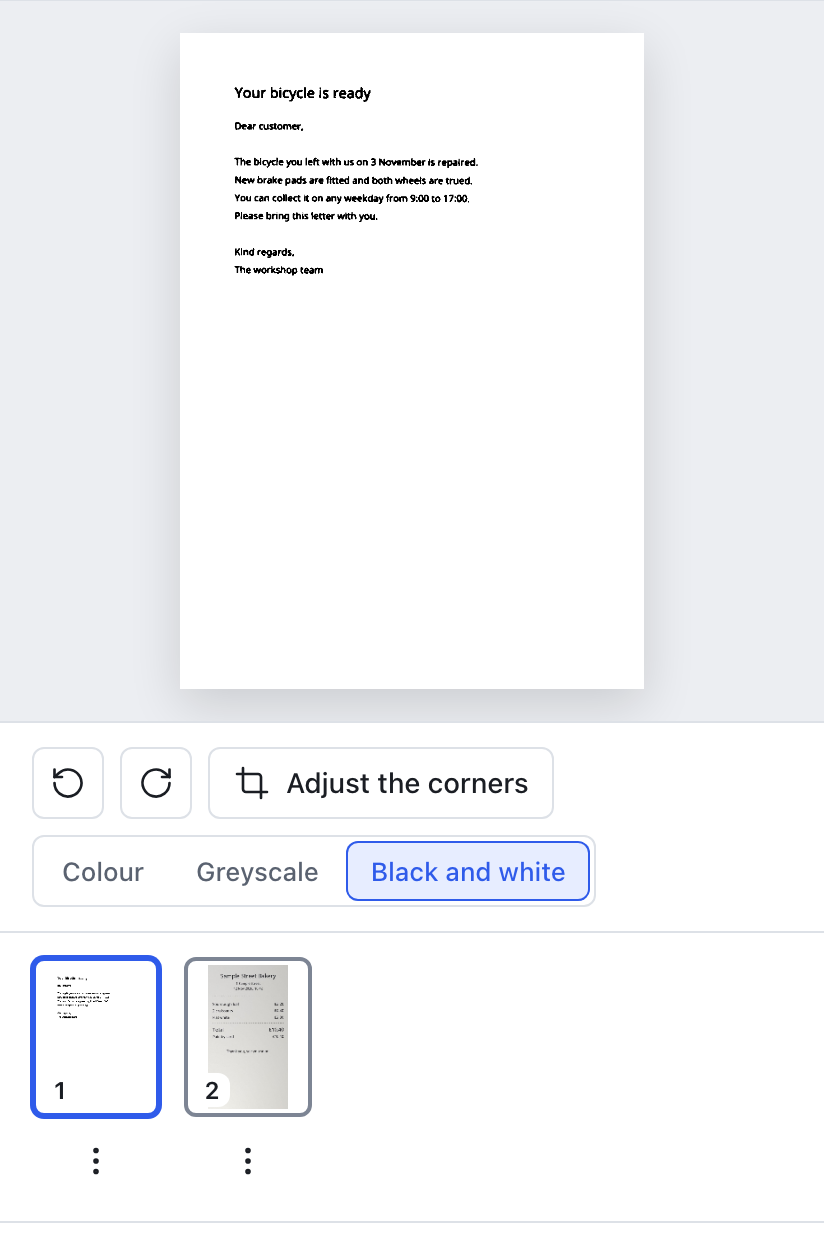
Putting pages right before you finish. Tap a page in the row at the bottom to see it again, change its look, turn it, or set its corners again with Adjust the corners. Each page there has a menu of its own, under its ⋮ button, with Move earlier, Move later, Retake photo and Remove page.
On a computer, Scan pages opens your files instead of a camera, so you can choose photos you have already taken, several at once. Each one's corners are checked in turn, and Retake photo becomes Choose another photo.
Into a PDF you already have open: press Scan pages (the camera) in the toolbar, and the scanned pages go in after the last selected page, or at the end when none is selected, with Add to this stitch.
Scanning your ID card or passport to send? Mark the copy with what it is for, and black out what the reader does not need, before it leaves your phone.
Taking a photo that scans well
- Lay the page on something darker than it. PDF Stitch finds the page as the largest patch of the photo that is lighter than what is round it. White paper on a dark desk is found at once; on a white table it may not be. Then the corners start at the corners of the photo, and you drag each onto the page.
- Keep all four corners in the photo. A corner can be put anywhere on the photo, but not beyond its edge, so a corner cut off is cut off in the scan too.
- Fill the photo with the page. The scan is made from the photo's own pixels, those the page covers, so the more of the photo it fills, the sharper the scan, up to 3,000 pixels along the page's longer side.
- A slant is fine, a steep one less so. The app undoes the camera's perspective, so a page photographed at an angle comes out its true shape. But the far edge of a steeply tilted page covers fewer of the photo's pixels, so it comes out softer than the near one.
- Flatten the page. The four corners are made a rectangle, and everything between them follows. A page that curls, or the curve of a book's page, stays curved.
- Shadows. Black and white compares each part of the page with what is round it, so a soft shadow across the paper turns white and the writing black. Colour and Greyscale keep the page as the photo shows it, shadow and all.
Colour, greyscale or black and white
- Colour keeps the page as photographed: the paper's colour, a blue pen, a red stamp.
- Greyscale (Pro) takes the colour out and keeps every shade between black and white.
- Black and white (Pro) makes every part of the page black or white, and keeps it as a PNG picture so each letter's edge stays crisp. It suits printed letters and forms. Anything in colour, such as a signature in blue or a stamp, turns black or white too.
Each page has its own look, and the next page you add starts in the look you chose last. A PDF that is already made can be put in grey or black and white too (Pro), as you download it.
Scans you keep as records: whose rules ask for what
A scan made for yourself only has to be readable. If you keep scans instead of the paper, for taxes or a business's books, the rules where you file may ask for more, and some ask for colour. These are three of them, each in its own words, in short:
- Japan, the National Tax Agency (scanner storage of tax documents): pages read at 200 dpi or more, in colour with 256 levels each of red, green and blue. Greyscale, with 256 levels from white to black, is allowed only for general documents, those not tied directly to the flow of money or goods, such as quotes and order forms; black and white, with only two levels, meets neither. Receipts are among the important documents, kept in colour. A smartphone counts as a scanner if it meets the same requirements, and its resolution is judged by the page's size and the photo's pixels: for an A4 page, at least 2,338 by 1,654. The rules also ask for a time stamp, or a system that shows each scan was entered in time, a system that records every correction or deletion or allows none, and a way to search the scans by date, amount and the other party, none of which a scan alone has.
- Germany, the Federal Ministry of Finance (the GoBD): paper documents may be captured with any kind of device, smartphones included, as long as the rest of its requirements are met. Full colour is required where colour serves as evidence, such as negative amounts in red or notes made in different colours. How documents are captured has to be written down. No time stamp is required.
- The United States, the IRS (Revenue Procedure 97-22): images of records must be highly legible and readable on screen and on paper, which it defines as every letter and digit told apart quickly and surely, and read as words and whole numbers. It says nothing about colour, but asks for an index to find each record by, and controls against changes.
So where a rule asks for colour, scan receipts in Colour, as the receipt on the second page of the second file above is. Black and white is for pages where nothing rests on colour, and where no rule asks for it. PDF Stitch makes the scan: it keeps no time stamps and no record of changes, so for records kept under these rules it is one step, and the rest needs a system made for it.
A scan is a picture: making its text searchable
A scanned page is a photo of the paper, so you can read it but not search it, select its words or copy them. Recognise text in scans, under Tools, reads the words in the picture and lays them invisibly over it, where they can be searched and copied. It reads English, German, French, Spanish or Hindi, and only those: a page in any other language stays a picture you can see but not search. Its language data is fetched from this site the first time you use each language.
You do not have to take our word for it
-
Watch the network
The "Nothing is uploaded" button in the app opens a list of every other site the page has contacted since you opened it, and how often, taken from the browser's own record. Your browser's developer tools show every request, this site's own included.
-
Pull the plug
Once the app has loaded, turn off your network and keep working. Text recognition, the document converter and the handwriting fonts work offline too after their first use.
-
Redaction that removes
A page with something blacked out is saved as a picture of itself, so the text under the box is gone, and every redacted page is checked before the file is saved.
Questions
- Is scanning with PDF Stitch free?
- Yes. Scanning in Colour is free, every page found, straightened and put in one PDF. Greyscale and Black and white are Pro, as downloads in grey or in black and white are. Recognise text in scans is free up to 10 pages at a time, and Pro over 10 pages.
- Do I need to install an app?
- No. PDF Stitch is a web page: open it in your phone's browser and press Scan pages.
- Are my photos uploaded?
- No. The page is found and straightened on your phone, with nothing fetched for it, so it works offline once loaded.
- Why can I not search or copy the text in my scan?
- Because a scan is a picture of the page. Recognise its text with Recognise text in scans, which reads English, German, French, Spanish or Hindi.
- What if the app does not find the page?
- The corners start at the corners of the photo, and you drag each onto a corner of the page. Next time, lay the page on something darker than it: a desk, a table or a floor.
- Can I scan a receipt?
- Yes. A page that is not the shape of A4, Letter or Legal, such as a receipt, keeps its own shape and is fitted inside A4. Where your tax office asks for colour, keep it in Colour.
- Is a phone scan good enough for my tax records?
- That depends on whose rules you keep them under. Japan's National Tax Agency and Germany's GoBD allow photos from a phone, with conditions. Each asks for colour for some documents, and Japan's also for a time stamp, or a system that shows when each scan was entered, and a record of changes, which PDF Stitch does not add. Check the rules that apply to you.
Sources
- National Tax Agency (Japan): questions and answers on scanner storage under the Electronic Books Preservation Act, July 2026 edition (questions 2, 5, 10 and 26)
- Federal Ministry of Finance (Germany): GoBD, letter of 28 November 2019 (since amended in 2024 and 2025), paragraphs 130, 136, 137 and 138, as published by the Bavarian State Tax Office
- Internal Revenue Service (US): Revenue Procedure 97-22, Internal Revenue Bulletin 1997-13, page 9